
How to Write a User Manual: A Step-by-Step Guide
- Sonat Team
- 06 Jul, 2026
- 06 Mins read
- Product Documentation
A user manual has one job: help someone do a task without getting stuck. When it works, support tickets drop, onboarding speeds up, and people trust your product more. When it doesn’t, readers give up and call you instead. The good news is that a clear manual is not a writing-talent problem — it’s a process. This guide walks through that process step by step, from planning to publishing, so you can write a user manual people actually use.
What a user manual is (and what it isn’t)
A user manual is task-focused documentation that shows a specific audience how to set up, operate, and troubleshoot a product. It’s sometimes called a user guide, an instruction manual, or an owner’s manual, and it can cover anything from a coffee machine to a software application.
It is not a feature brochure and not an internal spec. A brochure sells; a spec describes how something is built. A user manual answers one question over and over: “How do I do this?” Keep that question in front of you and most decisions about what to include become easy.
Good manuals share a few traits. They’re organized around the reader’s tasks, not your menu structure. They use plain words. And they’re easy to scan, because most people don’t read documentation front to back — they hunt for the one thing they need right now.
Step 1: Define your audience and their tasks
Before writing a single instruction, answer two questions: Who is this for? and What are they trying to accomplish?
The U.S. Federal Plain Language Guidelines, which grew out of the Plain Writing Act of 2010, put audience first for a reason: the same product needs different documentation for a first-time user and an administrator. A new user wants “get started in five minutes.” An admin wants configuration and permissions. Trying to serve both in one undivided document usually serves neither.
Make a simple list of the jobs your reader needs to finish — install, connect, run a first report, reset a password, fix a common error. That task list becomes the backbone of your table of contents. Everything else is detail hanging off those tasks.
Step 2: Outline before you draft
Structure carries a user manual more than prose does. A clear outline prevents the two most common failures: gaps (a step is missing) and sprawl (three sections cover the same thing).
A dependable structure looks like this:
- Introduction — what the product does and who the manual is for.
- Getting started — setup, installation, and first use.
- Core tasks — one section per job the reader needs to complete.
- Troubleshooting — common problems in a problem-then-solution format.
- Reference — settings, specifications, and a glossary.
Order sections the way a real person moves through the product: unbox or sign up first, configure next, then everyday tasks, then edge cases. Use your reader’s words in the headings. If they call it “adding a teammate,” don’t title the section “user provisioning.”
Step 3: Write steps people can actually follow
This is where most manuals live or die. Nielsen Norman Group’s research on reading behavior found that 79% of users scan a new page while only 16% read word by word. People aren’t studying your manual — they’re skimming it under mild pressure, hoping to get unstuck fast. Write for that reader.
A few habits do most of the work:
- One action per step. If a step contains the word “and,” it’s probably two steps. Break it apart and number them.
- Start with the verb. “Click Save.” “Enter your email.” Active voice and the imperative mood are shorter and clearer, and they’re a core plain-language recommendation.
- Say where before what. “In the top-right menu, select Settings.” Telling readers where to look before what to do keeps them from scanning the whole screen.
- Keep sentences short. Aim for one idea per sentence and short paragraphs. Plain-language guidance favors short sentences, common words, and lists over dense blocks of text.
- State the result. After a step or two, tell the reader what success looks like (“A confirmation banner appears”) so they know they’re on track.
The payoff for this discipline is measurable. In NN/G’s classic study, rewriting the same content to be concise, scannable, and objective improved measured usability by up to 124%. Clear steps aren’t a nicety — they change whether people finish the task.
Step 4: Add visuals where words fall short
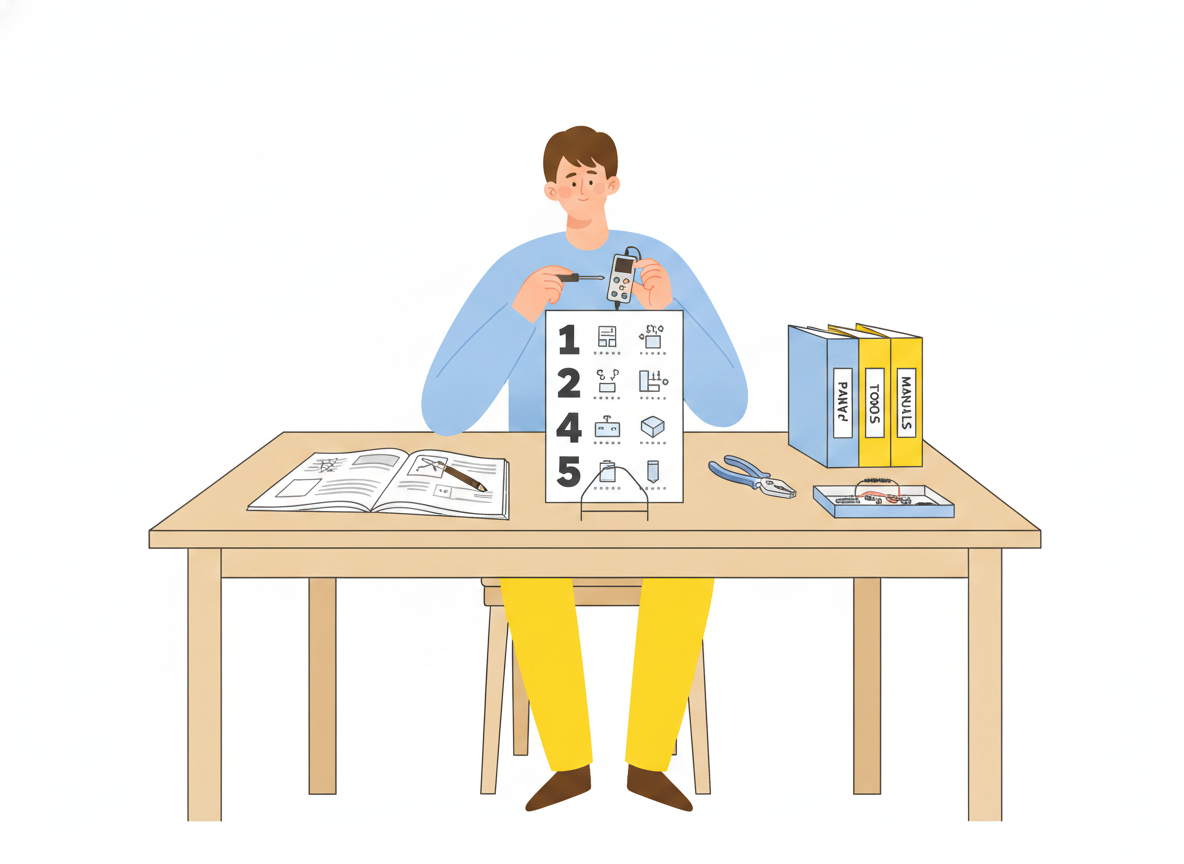
Some things are far easier to show than to describe. A screenshot with a highlighted button, a labeled diagram, or a short clip can replace a paragraph of “click the third icon from the left.”
Use visuals with intent, not decoration:
- Add a screenshot for any step where the reader has to find something on screen.
- Annotate images — an arrow or a boxed area beats “see the button below.”
- Keep visuals current. An outdated screenshot is worse than none, because it tells the reader they’re in the wrong place.
Pair every image with descriptive alt text. It keeps the manual usable for people relying on screen readers, and it preserves meaning if an image fails to load.
Step 5: Make it accessible and mobile-friendly
Your manual has to work for everyone, on whatever device they’re holding. The W3C’s Web Accessibility Initiative frames accessible content around three ideas worth designing to: content should be perceivable, operable, and understandable. In practice, for documentation, that means:
- Real text, not text baked into images, so it can be searched, translated, and read aloud.
- Sufficient color contrast and a readable font size.
- Descriptive headings and links (“Reset your password,” not “click here”), which help everyone scan and are essential for screen-reader users.
- Keyboard-friendly navigation for anyone who can’t use a mouse.
Accessibility overlaps almost entirely with plain, scannable writing — the same choices that help a screen-reader user also help a busy reader on a phone in poor lighting. Since most people now reach for documentation on a mobile device, a manual that only reads well on a wide monitor is a manual half your audience can’t use.
Step 6: Test the manual with real users
You are the worst judge of your own instructions, because you already know the answer. The fix is cheap: watch someone who doesn’t.
Hand the draft to a person from your target audience and ask them to complete a task while you stay quiet. Note where they hesitate, re-read a step, or do the wrong thing. Every hesitation marks a sentence to rewrite. Testing with even two or three people surfaces the confusing spots that no amount of solo proofreading will.
This is also where you catch the “curse of knowledge” — the assumed step you left out because it’s obvious to you and invisible to them.
Step 7: Publish, then keep it current
A user manual is never truly finished, because the product keeps changing. The hardest part of documentation isn’t the first draft — it’s keeping it accurate as features ship and screens change. An out-of-date manual quietly erodes trust: readers follow a step that no longer matches reality and conclude the whole thing is unreliable.
Build maintenance into your workflow instead of treating it as a cleanup project:
- Keep a single source of truth so there’s one place to update, not five stale copies.
- Version your content so you can see what changed and roll back a bad edit.
- Publish somewhere your audience can actually search and reach, on your own domain, so the manual is a link away rather than a PDF buried in an email.
This is the workflow Sonat is built for. Non-technical teams can draft in a familiar editor, keep every topic in one version-controlled home, publish to the web or a custom domain in a click, and translate into many languages — so support, product, and documentation teams can keep manuals current without waiting on engineering. The point isn’t the tool; it’s that a good manual needs a home where updating it is easy, because a manual you can’t easily update is a manual that goes out of date.
A quick word on AI
AI can accelerate the first draft — turning rough notes into structured steps in seconds. Use it. But treat its output as a draft, not a decision. One wrong instruction can break a reader’s setup and cost you the trust the manual was meant to build, so a human who knows the product still has to review every step for accuracy. AI writes faster; it doesn’t verify. That last check is yours.
The takeaway
Writing a user manual isn’t about polished prose — it’s about a repeatable process: understand your reader and their tasks, outline the structure, write one clear action at a time, show what you can’t easily tell, make it accessible, test it with real people, and keep it current. Do those things and you’ll produce a manual that quietly does its job: helping people succeed with your product, without picking up the phone.
Ready to give your manuals a home that’s easy to write, publish, and keep up to date? Start building your documentation with Sonat.
Related Articles

How to Write a Quick Start Guide Users Actually Follow
Learn how to write a quick start guide that gets new users to a first win in minutes, with a simple structure, writing rules, and a copyable template.

User Manual Template: A Simple Structure Readers Can Follow
A section-by-section user manual template, a reusable task-topic pattern, and clear rules for writing steps people can follow. Copy it and start writing.

How to Write a Troubleshooting Guide (With Template)
Learn how to write a troubleshooting guide users can follow: a symptom-first structure, a reusable template, a worked example, and when to use a flowchart.