View Publish Requests
To see Publish Requests for a document, open the document in the content editor and continue as follows:
- Click the document menu on the top left >> Publish Requests. (The number of open PRs are shown in a red circle next to the Publish requests on the main menu)
You can see the list of your PRs and their information.
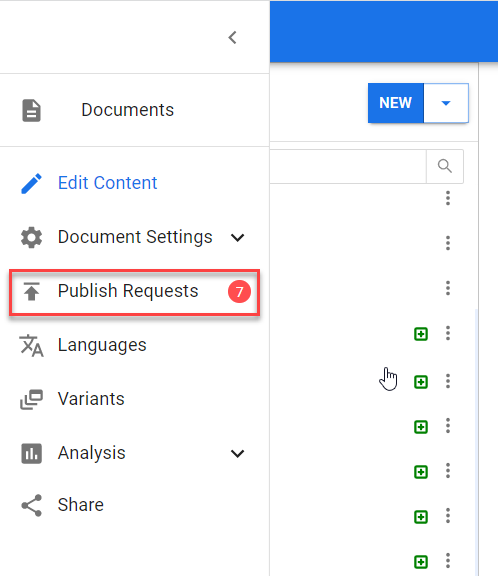
- On the PR window, click the PR you want to view in more detail.
Publish Request Elements
On the PR window, you can see open, published, closed, and all PRs together under separate tabs. You can also filter the PRs by title or sort them by date/title. Moreover, you can see each PR's title, description, creator, status (open, published, or closed), the reviewers and their status (If they have approved or rejected the PR or haven't reviewed it yet), the number and the status of the topics (new or modified), the variant and language of the document, and the number of comments.
You can see more details such as changes (Which topics and changes have been included in the publish request) and comments by opening each PR.
In the image below, we describe different sections of the Publish Request list page.

- Different tabs to sort PRs based on status (open, closed, published, all)
- Filtering by title
- Sorting by date or title
- PR creator
- PR title
- The number and status of the topics.
The green square shows that the topics are new (haven't been published yet), the yellow square shows topics that have been published before but are modified now, and the red square shows the topics that have been published but are deleted now. - The number of comments
- Reviewers and their review status
A. Not reviewed
B. Rejected (The PR needs more work to do)
C. Approved - Language
- Variant