
User Manual Examples: 7 Good Manuals and What to Copy From Each
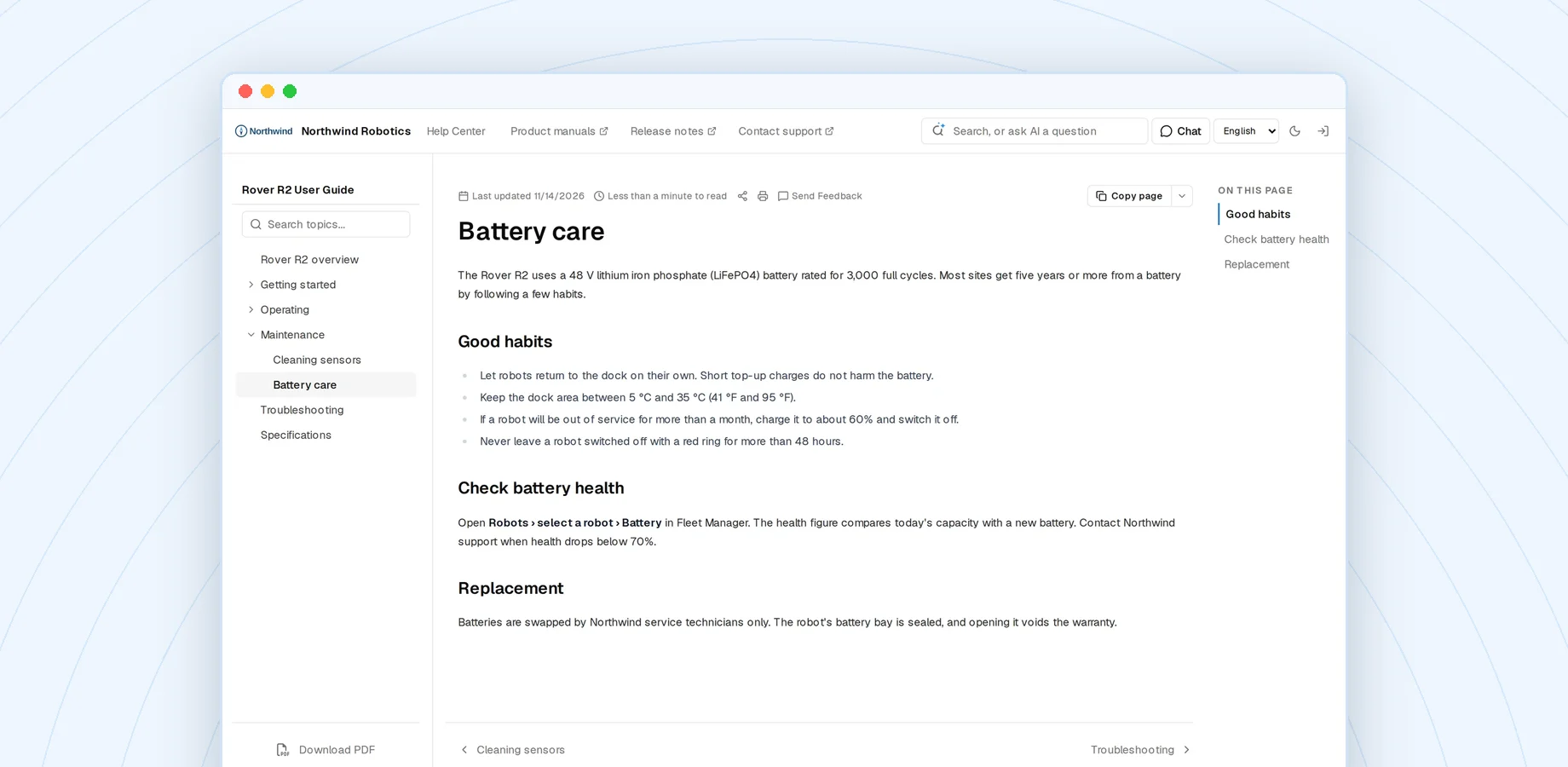
Most advice on writing a user manual is abstract: know your audience, be clear, use visuals. It’s easier to see what that means in a manual people actually use.
Below are seven user manual examples, from flat-pack furniture to cars to software, and the one thing to copy from each. If you’re building your own, you can follow along in a free user manual creator. At the end there’s a short sample page that puts those lessons together.
What counts as a user manual?
A user manual (also called a user guide, owner’s manual or instruction manual) explains how to set up, use, maintain and fix a product. It’s written for the people who use the product, not the people who build it. So a good one is organized around tasks the reader wants to finish, not around the product’s parts.
Today most user manuals are published in more than one form: printed in the box, as a PDF, as a website, or inside the product itself. Several examples below use more than one.
1. IKEA assembly instructions: let pictures carry the steps
IKEA’s assembly instructions are almost wordless. Each step is a drawing: which parts, which screws, which direction, and how many. Common mistakes get their own drawing, with the wrong way crossed out.
What to copy: When a step is physical, a clear drawing beats a paragraph. It also travels across languages without translation. You don’t have to go fully wordless. Even a text-based manual gets easier to follow when a diagram shows the end state of a tricky step.
2. LEGO building instructions: show only what changed
Every LEGO step shows the parts needed for that step in a box, then the model with only the new parts added. You never have to work out what’s different from the previous step. The build is split into small numbered steps, often grouped into bags, so a child can stop and pick up again later.
What to copy: For each step, show the reader what’s new and what they need for it, not the whole picture again. And split long procedures into short sections with natural stopping points.
3. Apple iPhone User Guide: organize by task, not by app
Apple’s iPhone User Guide is a website (and a book in Apple Books) organized around what people want to do: take a photo, set up Face ID, share your location. Each page is short, starts from the task, and links to related tasks. It’s also tied to a specific iOS version, so readers see instructions that match their phone.
What to copy: Name pages after the reader’s goal (“Back up your iPhone”), not after the settings screen. And make it obvious which version of the product a page describes.
4. Tesla Owner’s Manual: put the manual where the question happens
Tesla publishes its owner’s manuals on its website, and the manual is also available on the car’s touchscreen. Owners don’t need to find a glovebox booklet. They can look up how a feature works while they’re sitting in the car. Because the car’s software updates, the manual changes with it.
What to copy: Put the manual where readers get stuck: a help link in your app, a QR code on the device, a link in the onboarding email. A manual nobody can find in the moment doesn’t help, however good it is.
5. Canon camera manuals: web first, PDF for those who need it
Canon publishes camera manuals as searchable web pages, with PDF downloads for each model. Readers who want to look up one setting use the website. Readers who want to read through the whole manual, or keep it offline in a camera bag, download the PDF.
What to copy: You don’t have to choose between a web manual and a PDF. Write once, publish both, and let readers pick the format that fits how they use it. An online manual creator like Sonat builds the PDF from the same topics as the website, so the two never disagree.
6. Raspberry Pi documentation: a getting-started path for beginners
The Raspberry Pi documentation starts beginners on a clear “getting started” path: what you need, how to set up the device, and what to do first, before it branches into deeper reference topics. The documentation is maintained in a public GitHub repository, so readers can suggest fixes.
What to copy: Give new users one obvious path to their first success, and keep the reference material separate for when they need it. And give readers a way to tell you when a page is wrong.
7. Slack Help Center: answer the question in the title
Slack’s help articles are titled the way people ask questions, and many open with the short answer before the details. Articles also note when a feature depends on the plan or the device you use, so readers don’t follow steps that won’t work for them.
What to copy: Use the reader’s own words in titles. They match what people type into search, inside your manual and on Google. And say up front who a page applies to.
What the best user manual examples have in common
Put the seven side by side and the same habits show up:
| Habit | Seen in |
|---|---|
| Organized by the reader’s task, not the product’s parts | Apple, Slack, Raspberry Pi |
| One action per step, numbered | LEGO, IKEA |
| Shows what changed and what the result should look like | LEGO, IKEA |
| A clear path to the first success | Raspberry Pi, Apple |
| Available where the reader gets stuck | Tesla, Apple |
| Web for searching, PDF for reading and printing | Canon, Apple |
| Kept current as the product changes | Tesla, Apple |
None of these need a big documentation team. They’re decisions about structure, and you can make them on day one.
A sample user manual page you can copy
Here’s a short example of one topic, written with the habits above. The product is a fictional smart irrigation controller.
Connect the controller to Wi-Fi
Connect the controller so you can set watering schedules from the app. This takes about 5 minutes.
Before you start
- Install the app on your phone and sign in.
- Have your Wi-Fi name and password ready. The controller works with 2.4 GHz networks only.
Steps
- Press and hold the Setup button on the controller for 3 seconds. The light blinks blue.
- In the app, tap Add device, then Irrigation controller.
- Choose your Wi-Fi network and enter the password.
- Wait for the light to turn solid green. This can take up to a minute. The app shows Connected.
If something goes wrong
- The light blinks red: the password was wrong. Start again from step 1.
- Your network isn’t listed: your router may only broadcast 5 GHz. Turn on 2.4 GHz in the router settings, or ask your internet provider.
Notice what the page does:
- The title is the task, in the words a reader would search for.
- The first line says what you’ll achieve and how long it takes.
- “Before you start” catches the most common blocker (the 2.4 GHz network) before step 1, not after a failure.
- Each step is one action, starting with the verb, and says what you should see.
- Troubleshooting sits on the same page, written as symptoms the reader can recognize.
Repeat that shape for every task and you have the core of a user manual. For the full process, from planning to publishing, see how to write a software user manual. If you want help with the first draft, creating a user manual with AI covers the prompts to use and the checks to keep.
Build your own
The examples above share one more thing: they’re easy to find, search and update. That part is about where the manual lives, not how it’s written. Sonat is a user manual creator for publishing that kind of manual: write topics in a tree, publish them as a searchable website and a PDF, and update them as your product changes. You can start on the free plan.