
How to Write a User Manual with AI, Step by Step
AI can write a first draft of a user manual quickly. The hard part is everything around the draft: giving it the right facts, getting a structure readers can follow, catching the lines it got wrong, and putting the result somewhere people can find it.
This guide walks through that whole process in Sonat, using its AI Assistant. As an example, we’ll write a user guide for the Rover R2, a warehouse robot made by a fictional company, Northwind Robotics. The readers are warehouse operators. Swap in your own product as you go. Every step has a prompt you can copy.
In this guide: Before you start · 1. Gather your source material · 2. Create the document · 3. Open the assistant and pick a model · 4. Ask for an outline first · 5. Draft the topics · 6. Check each topic · 7. Organize the manual · 8. Publish to the web and PDF · Keep it up to date · Prompt cheat sheet
Before you start
- A Sonat account. The Free plan works for this guide. It includes 300 AI credits, and the AI Assistant is already on.
- Material about your product. Notes, a Google Doc, or a public web page such as your product page or release notes.
- A clear reader. Write one sentence about who reads the manual and what they already know. For the Rover R2: “Warehouse operators who use the robot every shift but have no technical training.”
Step 1: Gather your source material
The assistant writes from what you give it. The more specific your material, the fewer gaps it has to guess at. Collect what you have in one of three forms:
- Notes you paste into the chat. Even a bullet list of features, settings and warnings helps.
- A Google Doc. Import it into Sonat, or keep it in sync, and the assistant can read it there.
- A public web page. Paste the link into your request. The assistant opens the page and reads it.
Good to know: the assistant can’t read Word or PDF files you upload yet. Copy the important parts into the chat, or move the document to Google Docs first.
Step 2: Create the document
In Sonat, a manual is a document, and each page in it is a topic. You can create the document yourself with the New button in the editor, or let the assistant do it in step 4. Name it the way readers will search for it, for example “Rover R2 User Guide”.
Step 3: Open the assistant and pick a model
Open the AI Assistant from the robot icon in the top bar. When a topic is open, you can also use the bar at the bottom of the page. The panel shows how many AI credits you have left, and questions about how Sonat works don’t use any.
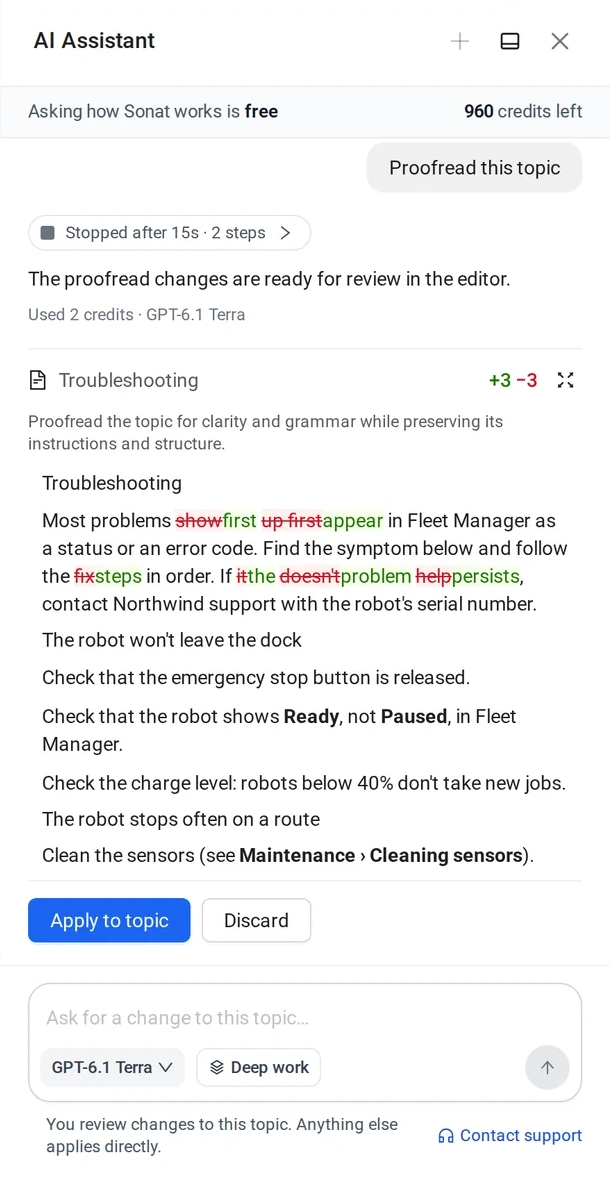
Then choose a model in the chat box. Each one has a strength:
- GPT-6.1 Terra for everyday writing and edits
- Claude Opus 5.5 for long documents and careful rewrites
- Gemini 3.1 Pro for working from a lot of source material
Not sure? Start with Claude Opus 5.5 for a new manual, and Gemini 3.1 Pro if you’re feeding it a long product page. You can switch at any time without losing the conversation.
Step 4: Ask for an outline first
Don’t ask for the whole manual in one go. Get the structure right while it’s cheap to change. Tell the assistant who the reader is, where the facts are, and that you want an outline only.
Create a document called “Rover R2 User Guide” for warehouse operators with no technical training. Use northwind.example/rover-r2 as the source. Propose the sections and topic titles first. Don’t write the topics yet. List anything the page doesn’t cover as open questions.
Read the outline as your reader would. Is anything missing? Is the order the order they’ll need it in? Reply in the same chat to change it:
Move Charging before Operating. Add a “Safety” topic at the start. Merge “Cleaning” into “Maintenance”.
Tip: start topic titles with a verb (“Charge the robot”, “Clear an error”). Readers scan for the task they’re trying to do.
Step 5: Draft the topics
When the outline looks right, ask for the drafts. Do it a section at a time, so each request stays small and easy to check.
Write the topics in “Getting started” as drafts. Use numbered steps with one action each. Put each warning before the step it applies to. Where the source doesn’t say, write [CHECK] and what’s missing instead of guessing.
While it works, a small activity card lists each step: which page it read, which topic it wrote. If it heads the wrong way, press Stop. New topics are saved as drafts, so nothing is visible to readers yet.
Writing a whole manual? On a paid plan, turn on Deep work. Claude writes a plan for the full job, you read it and press Start, and it works through every topic. A job that size can use 500 credits or more. On the Free plan, keep going one section at a time.
Step 6: Check each topic
This is the step that makes the manual trustworthy, and it’s yours. Open each draft topic and read it against the real product.
- Search for [CHECK]. Fill in each gap yourself, or answer it in the chat.
- Follow the steps on the product. If a button has a different name, or a step is missing, fix it.
- Ask for improvements. With the topic open, ask for a change, for example:
Make this topic shorter and easier for a first-time operator. Keep every warning.
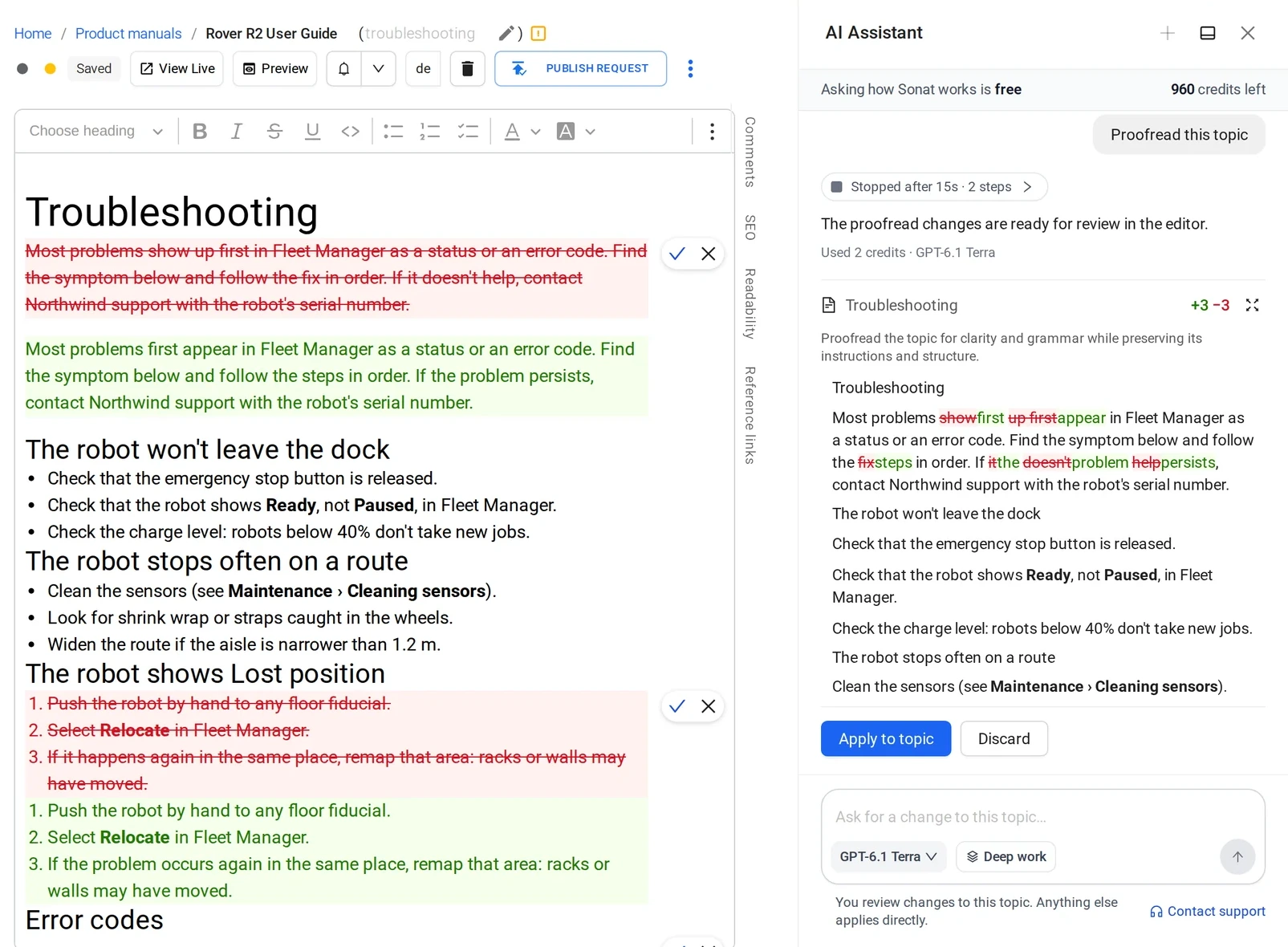
Changes to the open topic appear in the page itself, with removed text in red and new text in green.
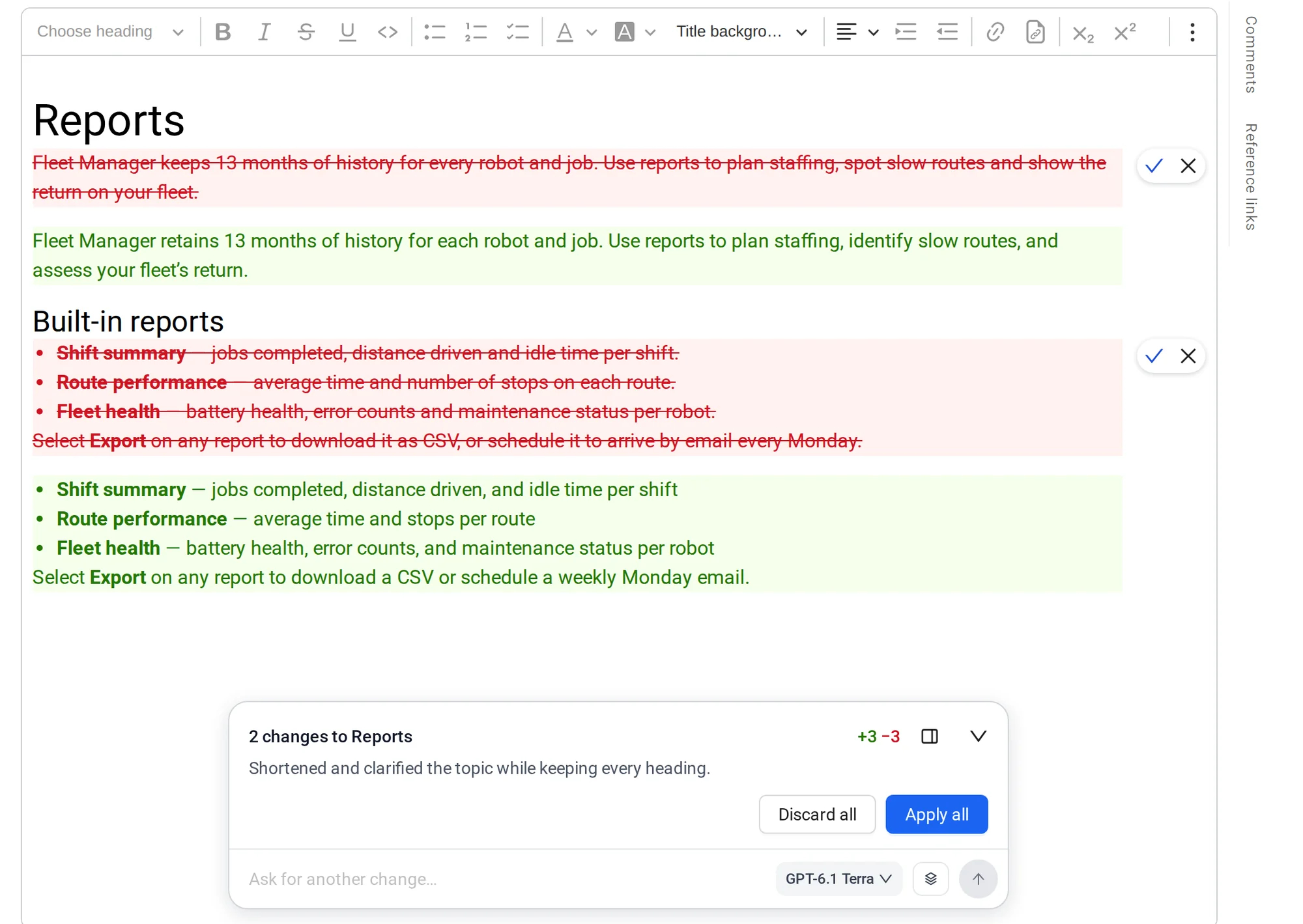
Keep a change with ✓, drop it with ✕, or use Apply all. If one is close but not right, type a follow-up in the same box. You can also edit any topic by hand, like any page in the Sonat editor.
Step 7: Organize the manual
Look at the topic tree on the left as a reader seeing it for the first time. The first topic should get someone started. Related tasks should sit together. You can drag topics yourself, or ask:
Put all the error and fault topics in a section called “Troubleshooting”, ordered from most to least common.
Step 8: Publish to the web and PDF
When the topics are checked, publish them. Use Publish in the editor, or ask the assistant. It only publishes when you tell it to.
Publish all the topics in “Getting started” and “Charging”.
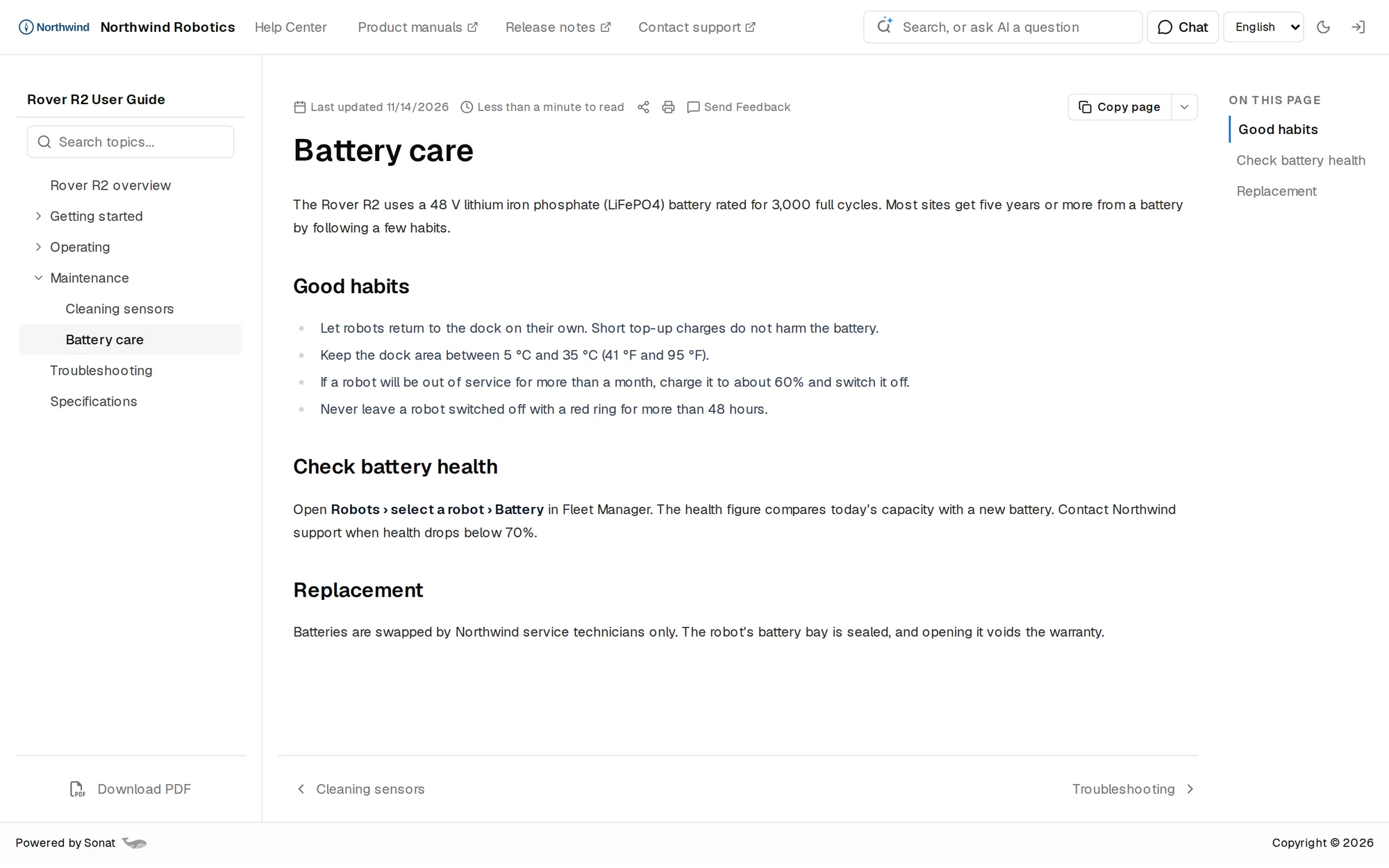
Readers now get an online manual they can search, on your own domain if you’ve set one up. A PDF version is rebuilt about 10 minutes after you publish, so they can download it too.
Keep it up to date
A manual starts going stale the day a product changes. Two habits keep it current.
After every release, open the topics the release touches and point the assistant at the release notes:
Update this topic with what changed in version 2.4: northwind.example/releases/2-4. Only change what the release notes cover.
From your readers’ questions. On Team and above, readers can ask your manual questions and get AI answers with links to your topics. The questions it couldn’t answer show up as content gaps. Each one is a topic you can ask the assistant to write next.
Prompt cheat sheet
| Step | Prompt |
|---|---|
| Outline | Create a document called “[name]” for [reader]. Use [link or notes] as the source. Propose sections and topic titles only, and list open questions. |
| Draft | Write the topics in “[section]” as drafts. Numbered steps, one action each, warnings first. Write [CHECK] where the source doesn’t say. |
| Improve | Make this topic shorter and easier for [reader]. Keep every warning. |
| Organize | Put all the [kind] topics in a section called “[name]”, ordered by [rule]. |
| Publish | Publish all the topics in “[section]”. |
| Update | Update this topic with what changed in [version]: [link]. Only change what the notes cover. |
Want prompts that work in any chatbot, not only Sonat? See AI prompts for writing user manuals.
Common questions
Can AI write a whole user manual? It can draft every topic, but someone who knows the product still needs to check the steps. In Sonat, drafts stay private until you publish, so you can review at your own pace.
How many credits does a manual use? It depends on the length of the manual and your source material. The panel shows your balance as you go. The Free plan includes 300 credits once, Team 500 a month and Business 1,000 a month.
Which AI model is best for writing a user manual? Claude Opus 5.5 is a good default for long documents and careful rewrites. Gemini 3.1 Pro suits very long source material, and GPT-6.1 Terra is quick for everyday edits. Try more than one on the same topic and compare.
Can I write the manual in more than one language? Yes. Sonat keeps a version of the manual per language, each with its own PDF. See languages.
Try it on your own product
The AI user manual generator is in every Sonat account. Start on the Free plan with 300 AI credits, no credit card needed.